

Ever worry that someone else could be peeking at your account? Your online space is like your front door, you wouldn’t leave it wide open, would you?
A few easy checks can stop any weird activity and keep your area safe. Try switching out weak passwords, disconnecting devices you don’t recognize, and adding extra plug-ins (small programs that shield your account) to block unexpected visitors.
It’s like giving your account a quick tune-up. Read on to learn how you can keep your account both secure and easy to use.
Key Steps for my account security
Sometimes you might notice odd behavior on your account like posts you never made or login attempts you don't recognize. Picture it like seeing a tweet that you definitely didn’t send, it's a clear sign something might be wrong. These little clues can help you spot trouble early.
A quick checkup on your account is like giving it a tune-up. It stops unwanted activity and keeps your digital world safe. You can learn more about it in our account security guide (account security: https://teafinance.com?p=165). This checkup means looking at your past logins, any devices that have connected, and your recovery options to make sure only you can get in.
- Change your password
- Remove any unfamiliar devices
- Look over your recent activity
- Update your recovery methods
- Review third-party access
- Turn on safe browsing
- Check saved passwords and use extra security features
These steps act like a strong lock on your door. Changing your password quickly shuts out anyone using your old details. Removing strange devices means you cut off any hardware that doesn’t belong. Checking your recent activity helps spot if someone else has been trying to get in. Updating recovery options gives you a backup plan if an attack happens. Reviewing third-party access stops apps and sites you no longer trust. Turning on safe browsing adds one more layer of protection against risky websites or downloads. Finally, double-checking your saved passwords and extra security measures makes sure every way into your account is locked tight. This hands-on approach not only keeps your data safe but also wards off future problems, keeping your online experience smooth and secure.
Strengthening my account security with strong password creation
If your password is weak, it can open the door for cyber attacks. Hackers often try simple words or repeated patterns to guess your secret code. Sometimes, a tricky link might let malware capture your password, or scammers might use the same password on many sites to break in. These issues can leave your account unprotected.
A strong password is a unique mix that you’ve never used before. Try using at least 12 characters, including uppercase and lowercase letters, numbers, and symbols. Skip dictionary words or predictable patterns. Think of it like setting up a combination lock with random tumblers, one that hackers can't guess easily. This approach helps lower the risks and keeps phishing scams at bay.
Once you have a strong password, it’s important to keep it safe and update it regularly. Consider using a password manager (a handy tool that creates and stores your secret codes securely) to make the process easier. This way, you avoid reusing old passwords on different sites, reducing risk and keeping your digital world secure.
Setting up multi-factor authentication for my account security
Multi-factor authentication, or MFA, is a really smart extra step to keep your account safe. Even if someone figures out your password, the extra check makes it so much tougher for unwanted visitors to get in. It works pretty simply: after you enter your password, you'll need to provide a second piece of info, like a code sent to your phone or a confirmation from an authenticator app, which gives your account a double-lock feel.
| Method | Type | Security Level | Setup Time |
|---|---|---|---|
| SMS codes | Text message | Moderate | Quick |
| Authenticator app | Time-based one-time passcode (TOTP, which means a code that changes every minute for extra security) | High | Quick |
| Hardware key | Physical device | Very high | Moderate |
| Biometric factor | Fingerprint or face recognition (a way to use your unique features to unlock your account) | Very high | Quick |
Once you have MFA all set up, give it a try by getting a test code when you register. If the code arrives and works, make sure to update your device details and keep backup codes in a secure spot. This little extra step can really help you get back into your account if your main method ever fails.
Customizing privacy settings for my account security
Start by checking out your privacy settings so you can decide who sees your personal details. It’s like opening a window just enough to let in fresh air while keeping out unwanted noise. This simple step helps you control what information you share with others.
Then, change your profile visibility settings. You can set your profile to show details only to your trusted contacts, like choosing who gets a backstage pass. This way, only the people you trust can see your posts and updates.
After that, look at all the apps connected to your account. Remove any third-party app you no longer use or trust. Think of it as cleaning out an old closet, you clear away what’s unnecessary and keep your space tidy.
Finally, update your messaging recovery options and turn off any data sharing that isn’t needed. Make it a habit to check your privacy dashboard each month to keep your information safe and organized.
Managing recovery and credentials for my account security
When you set up sturdy recovery options, you're really taking steps to keep your online account safe. Recovery info acts as a backup plan if things go wonky, maybe you forget your password or notice odd activity.
Pick a recovery email and phone number that aren’t your regular login details. This little trick adds safety by keeping these recovery contacts separate from what a potential hacker might target.
It’s smart to add backup codes and set up security questions too. Think of them like a spare key that proves it’s you when you're locked out.
Make sure you store these details in a safe spot only you can reach. It’s a bit like tucking away your secret safety deposit box where no one else can find it.
Finally, try out your recovery setup by logging out and using the Forgot Password option. This quick test helps you feel sure that when trouble comes, you'll be able to get back in without any hassle.
Monitoring devices and activity for my account security
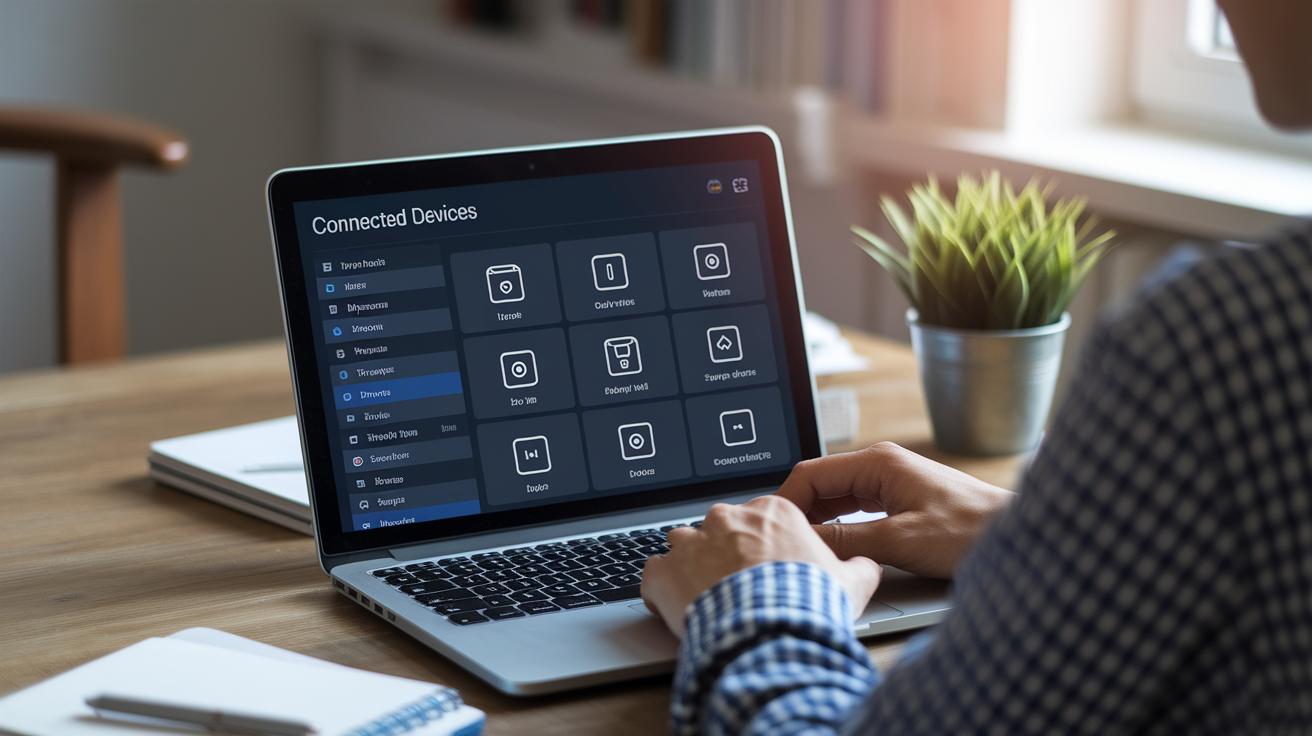
It’s smart to regularly review your devices and sign-in details to ward off unwanted intruders. Watching over connected gadgets and checking recent logins means you can spot any unusual activity before it turns into a big problem.
Removing unauthorized devices
Start by heading over to the connected devices list in your account settings. Take a careful look and spot any devices you don't recognize, maybe an old phone or a computer you never used. If you notice anything unfamiliar, remove it right away. It’s a bit like tidying up clutter; every device you clear out makes your account a little safer.
Reviewing login activity
Next, open your recent activity logs to see where and when your account got accessed. You’ll find details like time stamps, IP addresses (that’s simply the label for your internet connection), and the kind of device used. This helps you decide if something seems off. Then, tweak your security settings so you get alerts when a new device tries to log in or when there's a sign-in from an unusual location. Think of it as an early heads-up, giving you a chance to act before any mischief happens.
By keeping an eye on your account in this way, you'll catch small issues before they grow into bigger problems. Regular checks make sure every login is safe and keep unauthorized access well under control.
Final Words
In the action, we explored clear signs of a compromise and the steps needed for a thorough checkup, like changing passwords, removing unknown devices, reviewing activity, and setting up advanced layers of protection. These steps, along with creating strong credentials, activating multi-factor authentication, customizing privacy, managing recovery options, and monitoring devices, build a solid shield around your finances.
By following these practices, you boost my account security and enjoy a sense of calm each time you manage your money.
FAQ
Where can I view my account security settings?
Viewing your account security settings means logging into your account and heading to the security section. You’ll find options labeled “Account Security” to review your login methods and connected devices.
How do I view my Google Account password?
Seeing your Google Account password isn’t allowed directly. For security reasons, it remains hidden; if you forget it, you can reset it using the account recovery process.
What are the signs that your Google Account is hacked?
Recognizing a hacked account involves unexpected login alerts, unfamiliar devices, or unknown activities on your account. Regularly checking activity logs helps catch these issues early.
How can I secure my Gmail account from hackers?
Securing your Gmail account means updating your security settings, enabling extra verification like two-step authentication, and reviewing connected devices to block unauthorized access.
How do I update my account security phone number?
Updating your account phone number is done in your account recovery settings. Changing this ensures you receive important alerts and can quickly regain access if needed.
What is Google’s Account Security Checkup?
Google’s Account Security Checkup is a tool that reviews your devices, recent activity, and recovery options. It guides you through steps to spot unusual activity and boost your account security.