
Security
Security Key For Google Account Boosts Protection
Secure your Google account with a physical security key, a robust safeguard that might change everything, what outcome awaits you next?
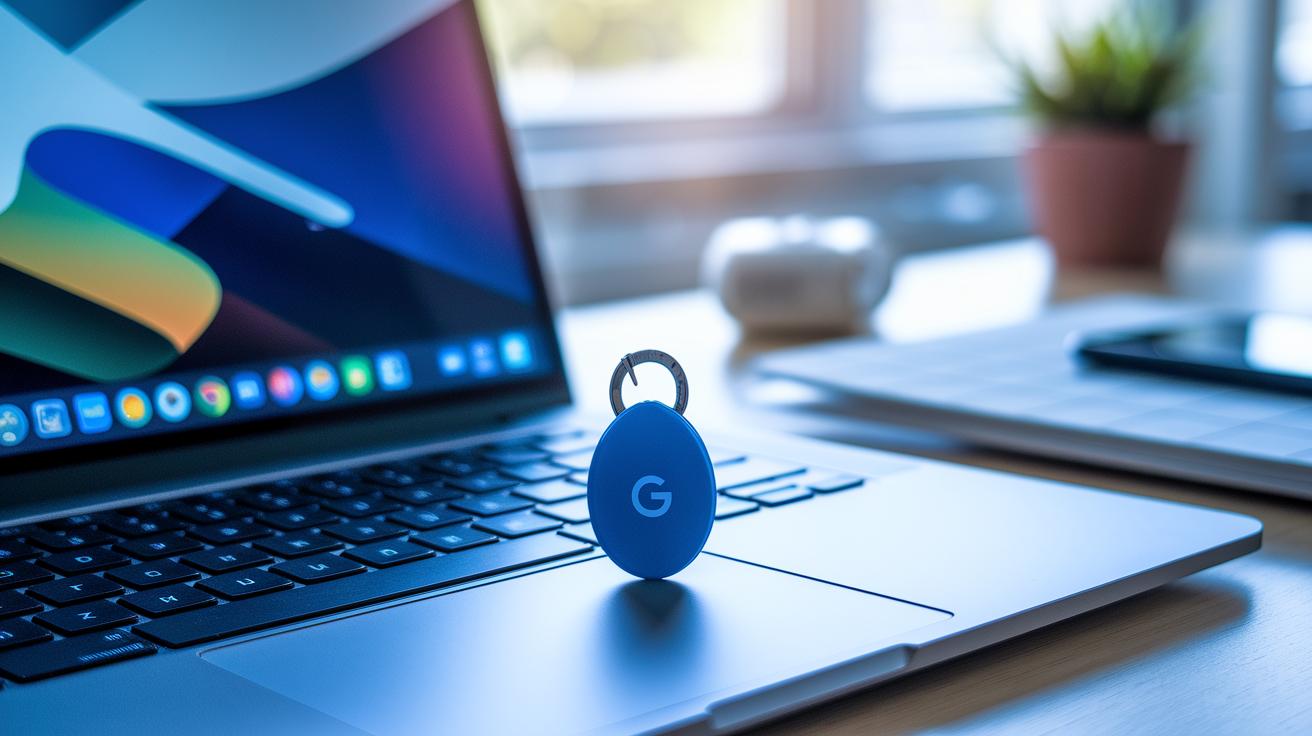
Have you ever wondered if one little gadget could protect your online world? A security key for your Google account works like a personal guard. It uses a simple fingerprint scan or PIN (a secret code you choose) to quickly confirm your identity. Even if someone figures out your password, they won’t be able to log in without this extra check.
Over 400 million Google users already trust this safety tool. It goes to show that even small changes can make a big difference in keeping your information safe. Next, we explore how using a security key gives you extra protection and peace of mind online.
Why Use a Security Key for Your Google Account
Imagine a small gadget that keeps your account safe. A security key replaces old passwords with simple methods like a fingerprint or a PIN (a quick way to check your identity). It makes logging in easy and stops online scams by making sure you’re really visiting the right site. Even if someone figures out your password, they still need that physical key to get in.
This extra layer of protection follows the FIDO standard (a set of rules for secure logins). Over 400 million Google Accounts already use these keys, and they’ve helped secure more than one billion logins worldwide. Think of it like carrying a tiny digital bodyguard that quietly protects your important information each time you sign in. If you’re curious about more ways to boost your account safety, you can check out account security.
Using a physical security key is a simple yet powerful way to keep your account locked safely. By adding this extra step, you make it a lot harder for someone else to break in. This smart tool offers real-time checks to keep your online experience smooth and secure every time you access your account.
How to Set Up Your Security Key on a Google Account

Start by opening Chrome and clicking your profile icon in the top right corner. Then, select Manage your Google Account and head over to the Security section. There, you’ll find the 2-Step Verification settings guiding you through a quick four-step setup.
Imagine plugging in your secure USB key, a tiny helper that instantly whispers, "Your account is safe!" It checks who you are with a fingerprint or PIN (a secret number you choose) and keeps out unwanted logins so only you can get in.
Here’s how to set it up, step by step:
- Go to your Google Account, click on Security, and open the 2-Step Verification page using your Chromebook or PC.
- On the 2-Step Verification page, find the Second Steps section and click "Add a security key."
- Plug in or tap your USB or NFC security key onto your device. Once it’s recognized, follow the prompts to register the key and activate 2-Step Verification. Think of this as giving your account an extra boost of security.
- Name your key (for example, “Office Key”) so you can easily identify it later if you decide to add more.
These simple instructions make sure your security key joins your online safety routine. It’s like setting up a trusted buddy right by your side to keep unwanted risks at bay. Enjoy the smooth click of registering your key and the peace of mind that comes with every secure login.
Compatible Security Key Types and FIDO Standards
Security keys come in a few different shapes to meet your everyday needs. You can choose a USB-A or USB-C key that plugs right into your computer, or go for an NFC or Bluetooth key that works with your phone or tablet. This way, you can pick the device that fits best into your routine.
They work using FIDO protocols: FIDO2 and U2F (Universal 2nd Factor, which is a way to add an extra layer of security). FIDO2 is like a modern set of rules that helps your key check if the website is genuine before letting you in. U2F, on the other hand, gives you that extra bit of safeguard when you log in. Think about it: you plug in your certified FIDO2 USB key, hear that smooth click, and it confirms your identity, blocking phishing attempts right away.
These keys are built to work on many devices. They are effective on Windows 10/11, macOS, Linux, Android, and iOS (for iOS, you might need an NFC or Lightning adapter). Whether you’re at a desk or on the go, having a key that meets both FIDO2 and U2F standards gives you a secure, reliable way to protect your online accounts.
Comparing Popular Security Keys: Titan, YubiKey, and Alternatives
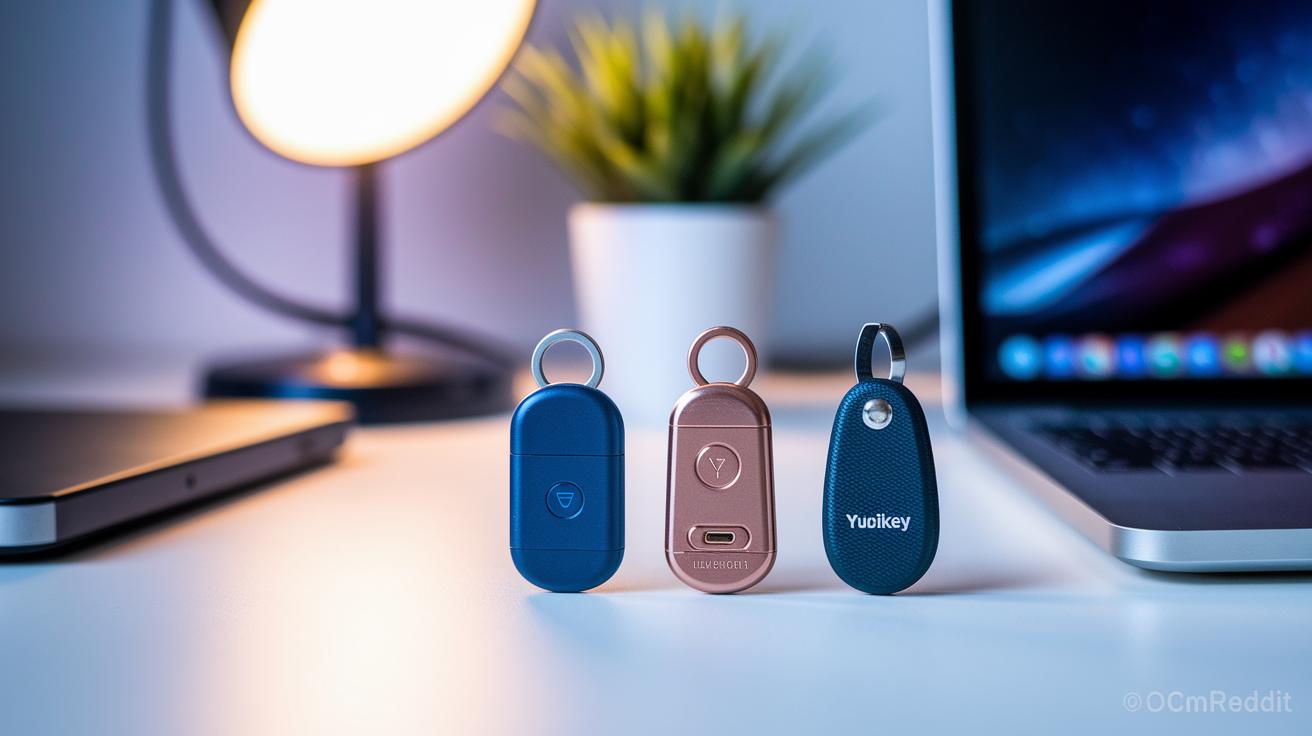
These little devices act as guardians for your online identity. They help keep your account secure while offering different features to match your needs. For example, the Google Titan Key comes with a USB-C port and NFC (a quick way to connect by tapping). It’s built to resist water, making it strong enough for everyday use. And for about $45 for a two-pack, it’s a great, tough option to consider.
Then there's the YubiKey 5 Series, which is pretty flexible. It works with USB-A, USB-C, NFC, and even Lightning connections if you have an Apple device. It supports reliable security protocols like FIDO2 (a modern, safe way to sign in) and U2F. With prices ranging from $25 to $50, it fits many budgets and sometimes even comes with a biometric PIN feature for an extra layer of protection.
If you’re exploring more choices, options like the Feitian MultiPass and the Thetis FIDO2 might catch your eye. The Feitian MultiPass offers USB-C and NFC at about $20, while the Thetis FIDO2 provides a USB-A connection for roughly $18. Each has its own take on durability, device support, and warranty terms. Your pick will depend on the gadgets you use and how much you want to spend.
| Key Name | Protocols | Interfaces | Price | Warranty |
|---|---|---|---|---|
| Google Titan Key | FIDO2, U2F | USB-C, NFC | $45 (two-pack) | Standard |
| YubiKey 5 Series | FIDO2, U2F | USB-A/C, NFC, Lightning | $25–$50 | Standard |
| Feitian MultiPass | FIDO2, U2F | USB-C, NFC | ~$20 | Limited |
| Thetis FIDO2 | FIDO2 | USB-A | ~$18 | Limited |
Each of these options brings its own mix of compatibility and protection, making it easier for you to choose the right hardware two-factor protector that fits your digital lifestyle.
Troubleshooting Common Security Key Issues
When you're using a security key, you might run into a few hiccups along the way. Here are five common issues and some simple steps to help you fix them.
-
Browser rejection: If your browser doesn’t accept your key when signing in, try using a different USB slot or open an incognito window. This often clears up any conflicts that block the key from being recognized.
-
Firmware outdated: If your key isn’t working like it should, check if its firmware needs an update (this means refreshing the key’s system to get it working smoothly). Use the tool from the key's maker to complete this update.
-
USB connector wear: Over time, the physical connector on your key might start to wear out. Inspect the USB port for any visible damage, and try a different port on your device to see if that fixes the issue.
-
Registration errors: Sometimes, you might encounter an error while setting up your key. In these cases, clearing your browser cache and restarting the registration on your computer or Chromebook often does the trick. Make sure you follow all the prompts carefully.
-
Lost key recovery: If your key goes missing or keeps giving errors, it’s a good idea to add a backup key right away or set up a Google prompt as a backup option.
These tips can help keep your security key running smoothly, protect your account, and give you a clear way to get back on track if something doesn’t work as planned.
Best Practices for Security Key Management and Backup
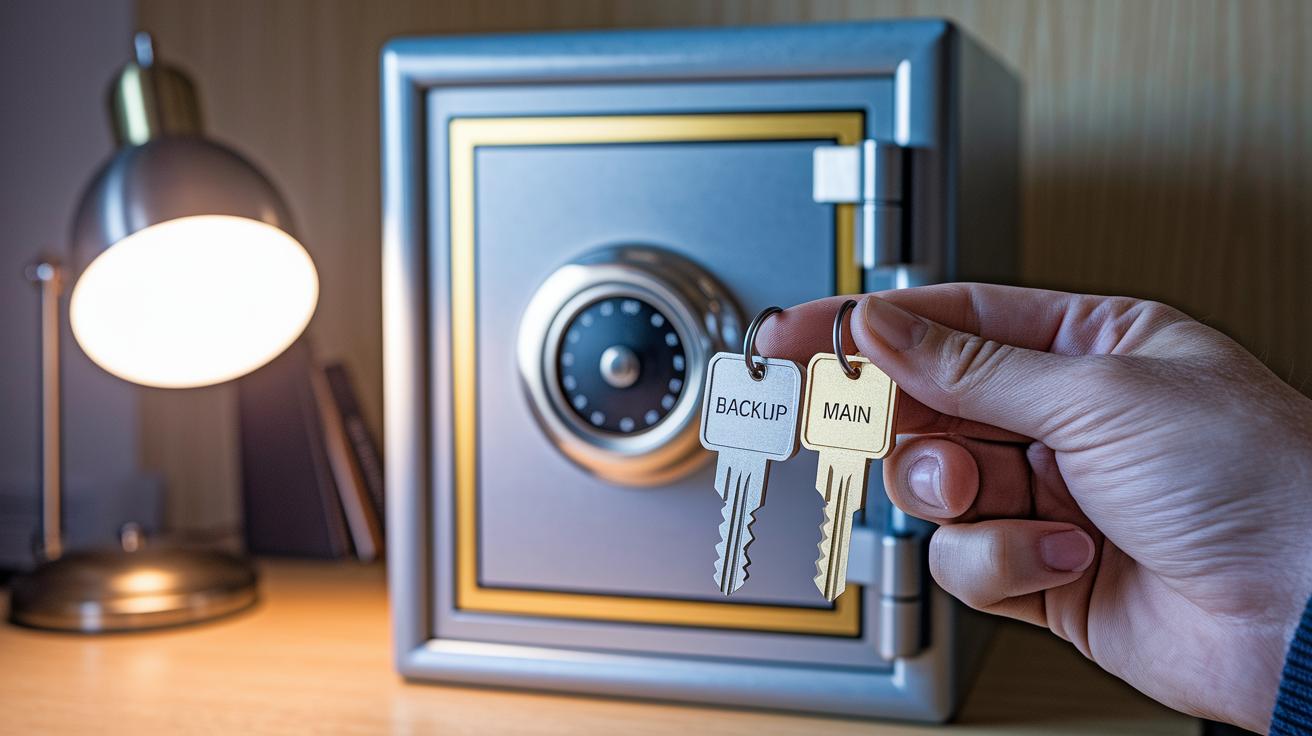
Managing your security keys carefully is the first step to keeping your Google account extra safe. It’s a smart idea to register at least two keys for each account you use. That way, if one key is lost or stops working, you still have access without any stress.
Keep your backup key somewhere you trust, a fireproof safe or a secure envelope that only you can get to works great. Also, it’s wise to give your keys a quick check every few months. A quarterly firmware update (a simple system fix that keeps your key in good shape) goes a long way in maintaining their performance.
When you switch to a new device, don’t forget to move all your registered keys over. Think of it like carefully transferring your favorite collectibles from one display to the next. And if your key offers a fallback option like biometric verification or a PIN, use it, it’s like a reassuring second check that your access remains secure.
Remember these steps:
- Register multiple keys per account.
- Securely store backup keys.
- Perform regular firmware updates.
- Migrate keys safely with your new devices.
Where to Buy: Pricing and Retailer Comparison for Security Keys
If you’re looking to protect your Google Account with a security key, you’ve got plenty of options from both online and brick-and-mortar stores. The Google Store, for example, sells the Titan Key as a two-pack for $45. It’s a great pick if you need to secure more than one account without spending too much.
Amazon also has some appealing choices. Their YubiKey 5C NFC is priced at about $49 and offers a smooth combination of ease and modern tech (it works well with the latest gadgets). And if you’re watching your budget, you might love the Feitian key, which is roughly $20, a good value when you’re starting out with hardware-based two-factor protection.
For those who prefer to see the product in person before buying, Best Buy is a smart option. You can check out the YubiKey 5Ci in stores for around $55. This way, you get to feel the key firsthand, and many local stores have demo units so you can see how it works on the spot.
Tips to get the best deal:
| Tip | Advice |
|---|---|
| Online Discounts | Check online regularly as some retailers offer discounts up to 20%. |
| Local Tech Shops | Visit local tech stores to try demo models and ask about in-store deals. |
| Price Comparison | Compare prices across different stores to find the best deal. |
These price insights can help you pick a security key that fits your budget while keeping your Google Account safe and secure.
Final Words
In the action, this article showed how a physical security key strengthens your Google account by replacing passwords with secure verification methods like biometric checks or PIN. You learned how to set up your key, review different types, compare popular models, troubleshoot issues, and adopt smart backup practices. Every step helps protect your financial assets and builds confidence in your digital transactions. Enjoy the peace that comes with a secure, innovative security key for google account, knowing you're well-equipped for lasting financial growth.
FAQ
What is a FIDO U2F security key?
The FIDO U2F security key is a physical token that protects your Google account by requiring a hardware touch during login, adding a robust barrier against phishing attacks.
How do I use a security key for my Google account on Android?
Using a security key on Android means adding an extra physical step during sign-in, where your device works with the key to confirm your identity alongside your password.
How do I set up my security key for a Google account?
Setting up your security key starts in your Google Account settings under 2-Step Verification, where you insert or tap your device, register it, and then assign it a name for easy use.
How can I locate or identify my Google security key?
You can locate your Google security key by reviewing the 2-Step Verification section in your account settings, which lists all registered keys along with their names and details.
What should I do if I forget my Google passkey?
If you forget your Google passkey, you can use backup options like an additional registered security key or the Google prompt recovery method to regain access to your account.
Why is Google asking for a security key?
Google asks for a security key to add a physical layer of protection during sign-in, making it much harder for unauthorized users to gain entry into your account.
What is the Google Titan Security Key?
The Google Titan Security Key is a hardware token that uses USB-C and NFC technology to provide a secure, physical extra step during login, safeguarding your account from phishing attacks.
What options are there if my Google security key app isn’t working?
If your security key app isn’t working, try restarting your device, updating the app, or switching to another registered key, ensuring uninterrupted access and account protection.
More from Politics
 Trends
Insurance Financial Trends: Bold Market Optimism
 Digital
Open Banking And Digital Banking Convergence: Bright Promise
 Risk
Correlation Breakdown And Portfolio Risk: Robust Outlook
 Tech